InsuraBook User Guide
Every sales day starts the same: a long list of leads, a tighter list of callbacks, and too much information - spreadsheets, sticky notes, scattered files. In the middle of a call with an important client, one cannot afford to hunt for the right number, the last note, or the correct spelling of a client’s name. Miss a detail and just like that, a warm lead goes cold!
InsuraBook exists to stop that from happening. Designed for busy telemarketing agents who sell insurance - InsuraBook is tailor-made to handle large lists of clients and new leads. This means that you can focus on your sales calls as the information you need is always where you expect it to be.
InsuraBook keeps essential client names, phone numbers and other miscellaneous information organised. It's optimised for use via a Command Line Interface (CLI) - making it easy to find, add, and update records efficiently using simple commands. InsuraBook transforms messy binders filled with client details into a steady, repeatable workflow optimised for high-volume calling - so busy agents can spend their energy making deals, and not chasing information.
How to Use This Guide
New to InsuraBook?
- Start with the Quick start section to install and run the application.
- Refer to the Command summary for a quick overview of all commands.
Experienced user looking for specific information?
- Use the Features section to find detailed explanations of specific commands.
- Check out Parameters for information on the available contact parameters.
Need help with something specific?
- Browse the FAQ section for answers to common questions.
- Check the Known issues section if you're experiencing problems.
Tip: Use Ctrl+F (or Cmd+F on Mac) to search for specific keywords/commands in this guide.
Quick start
Ensure you have Java
17installed in your computer.To check if Java 17 is installed: Open a command terminal/command prompt and type the following:
java -versionIf Java 17 is installed, you should see output similar to:
java version "17.0.x"If Java is not installed, or the Java version is below Java 17, proceed to install Java 17.
Installation links:
Download the latest
.jarfile from here.Copy the file to the folder you want to use as the home folder for your InsuraBook.
To run the application:
Open a command terminal/command prompt.
Navigate to the folder containing the.jarfile:cd path/to/your/folderRun the application:
java -jar InsuraBook.jarA GUI similar to the one displayed below should appear within a few seconds. Note how the app contains some sample data.
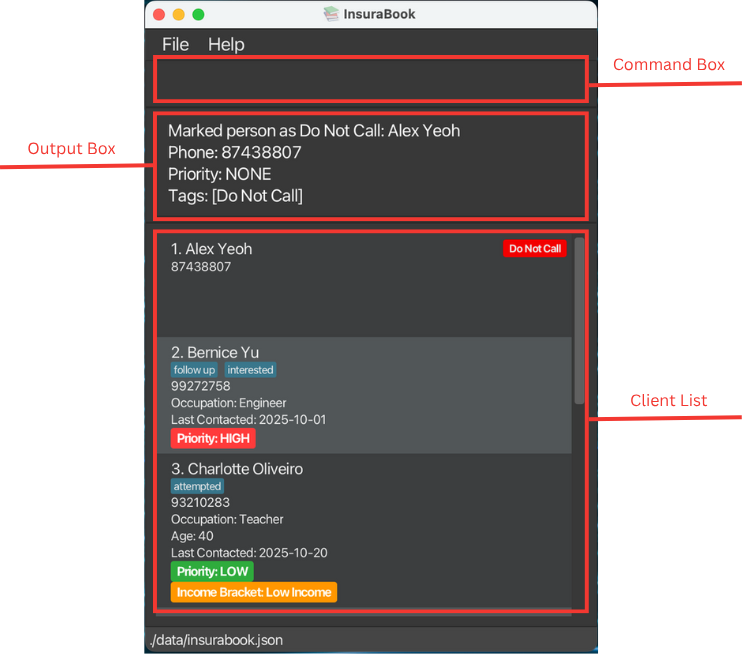
Insurabook User Interface labelled
Type the command in the command box and press Enter to execute it, e.g. typing
helpand pressing Enter will open the help window.
Some example commands you can try:list: Lists all contacts.add n/John Doe p/98765432 e/johnd@example.com a/John street, block 123, #01-01: Adds a contact namedJohn Doe, with phone number98765432, emailjohnd@example.com, and addressJohn street, block 123, #01-01.priority 1 HIGH: Sets the priority of the first contact to HIGH.delete 3: Deletes the third contact shown in the current list.clear: Deletes all contacts.exit: Exits the app.
Refer to the Features below for details of each command.
Click here to go back to the content page.
Parameters
The following are the parameters we will be using in InsuraBook.
Reading Parameter Formats
Before diving into each parameter, here's how to read the command formats:
| Format | Meaning | Example |
|---|---|---|
PARAMETER | Required, must provide | n/NAME must be included. |
[PARAMETER] | Optional, can skip | [e/EMAIL] can be omitted. |
[PARAMETER]... | Can repeat multiple times | [t/TAG]... → t/friend t/vip. |
PARAMETER/ (empty) | Clears the field | i/ removes income bracket. |
Common Parameters
The following are compulsory parameters to the add and edit command.
| Parameter | Description | Constraints |
|---|---|---|
INDEX | Position of the client in InsuraBook | Must be a non-negative integer within the displayed contact list. |
n/NAME | Client's name | Must consist of alphabets or the following characters: -/ '/ // @. |
p/PHONE_NUMBER | Client's phone number | Must be a number between 4-17 digits. |
Optional Parameters: PERSON_PARAMS
The following are optional parameters to the add and edit command. We denote them as [PERSON_PARAMS].
| Parameter | Description | Constraints |
|---|---|---|
e/EMAIL | Email address | Must be a valid email format (e.g., user@example.com). |
a/ADDRESS | Physical address | Any text string that is a valid address. |
o/OCCUPATION | Client's occupation | Any alphabetical character. |
age/AGE | Client's age | Must be a positive integer between 10-120 inclusive. |
lc/LAST_CONTACTED | Last contact date | Must not be a future date. Format: YYYY-MM-DD (e.g., 2023-10-15). |
pr/PRIORITY | Contact priority level | Must be one of: NONE, LOW, MEDIUM, HIGH (case-insensitive). |
i/INCOME_BRACKET | Income bracket classification | Must be one of: LOW, MIDDLE, HIGH (case-insensitive). |
t/TAG | Tags for categorisation | Alphanumeric and spaces allowed. Maximum 30 characters. Can be used multiple times (e.g., t/friend t/colleague). |
Notes about PERSON_PARAMS:
- These parameters can be used in any combination with the
addandeditcommands. - Parameters can be specified in any order.
- For the
editcommand, at least one parameter must be provided. - When editing tags with the
editcommand, existing tags will be replaced (not added to). - To remove any field, use the prefix without specifying a value after it (e.g.
t/to remove all tags,e/to remove email,a/to remove address, etc.).
Click here to go back to the content page.
Features
Notes about the command format:
Words in
UPPER_CASEare the parameters to be supplied by the user.
e.g. inadd n/NAME,NAMEis a parameter which can be used asadd n/John Doe.Items in square brackets are optional.
e.gn/NAME [t/TAG]can be used asn/John Doe t/friendor asn/John Doe.Items with
… after them can be used multiple times including zero times.
e.g.[t/TAG]…can be used 0 times,t/friend,t/friend t/familyetc.Parameters can be in any order.
e.g. if the command specifiesn/NAME p/PHONE_NUMBER,p/PHONE_NUMBER n/NAMEis also acceptable.Extraneous parameters for commands that do not take in parameters (such as
help,exitandclear) will be ignored.
e.g. if the command specifieshelp 123, it will be interpreted ashelp.If you are using a PDF version of this document, be careful when copying and pasting commands that span multiple lines as space characters surrounding line-breaks may be omitted when copied over to the application.
Getting Started
Viewing help: help
Shows a message explaining how to access the help page.
Format: help

Managing Client Information
Adding a client: add
Adds a client to InsuraBook.
Format: add n/NAME p/PHONE_NUMBER [PERSON_PARAMS]
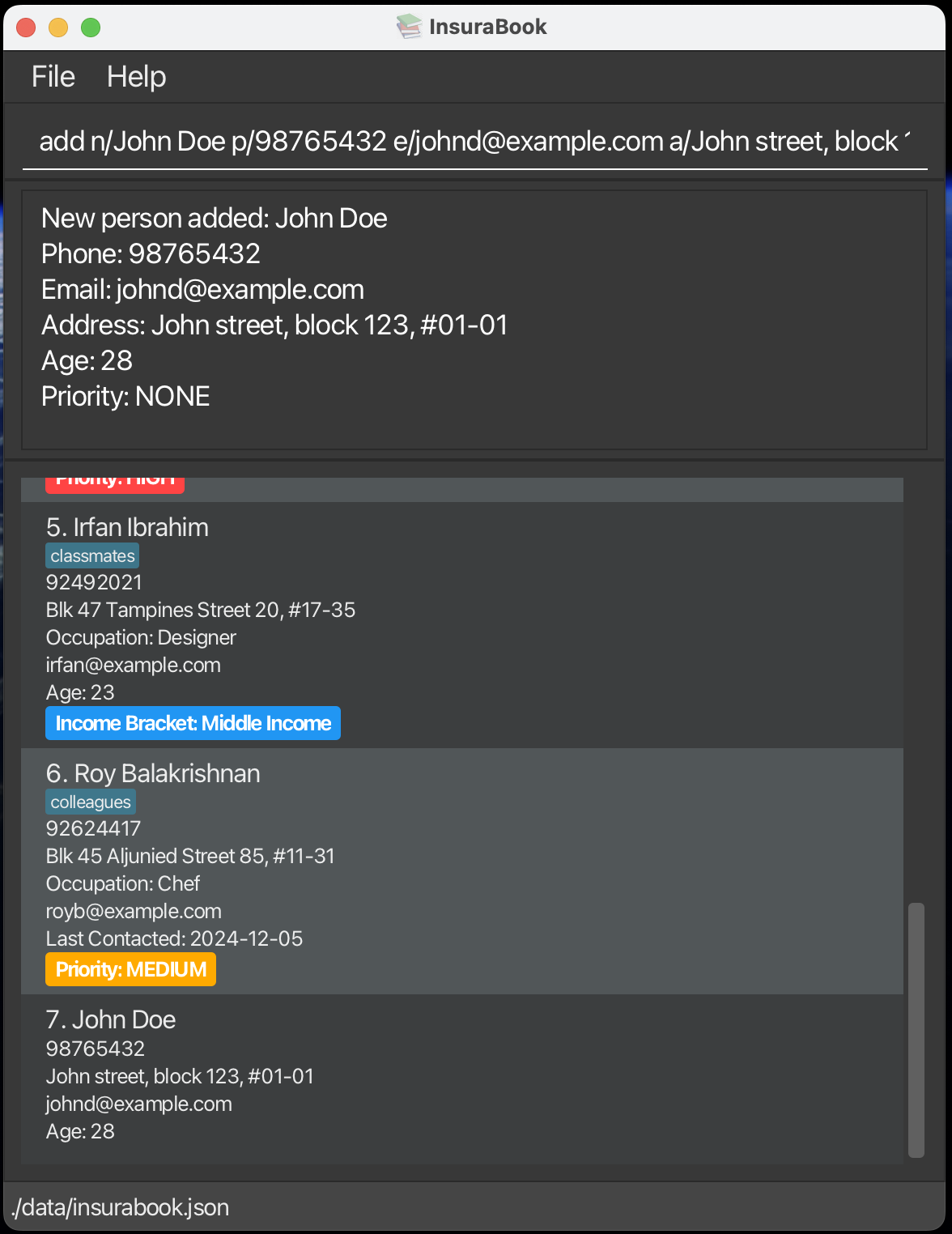
Adding a client on InsuraBook
- For details on available
PERSON_PARAMS, click here.
Examples:
add n/John Doe p/98765432 e/johnd@example.com a/John street, block 123, #01-01 age/28- Adds a client named
John Doewith the phone number98765432, emailjohnd@example.com, addressJohn street, block 123, #01-01, age28.
- Adds a client named
add n/Betsy Crowe p/82345678 t/interested a/The Gardens at Bishan o/Engineer i/high pr/HIGH- Adds a client named
Betsy Crowewith phone number82345678, tagged asinterested, addressThe Gardens at Bishan, occupationEngineer, income brackethigh, and priority levelHIGH.
- Adds a client named
Note: n/NAME and p/PHONE_NUMBER are required for add. All other prefixes under PERSON_PARAMS are optional.
- If an optional prefix is omitted, that field is left unset.
- If an optional prefix is present but has no value (for example
e/ora/) when adding a client, the application ignores the prefix.
Warning: Adding another client with the same PHONE_NUMBER as an existing client will be counted as a duplicate and is not allowed.
Editing a client: edit
Edits an existing contact in InsuraBook.
Format: edit INDEX [n/NAME] [p/PHONE] [PERSON_PARAMS]
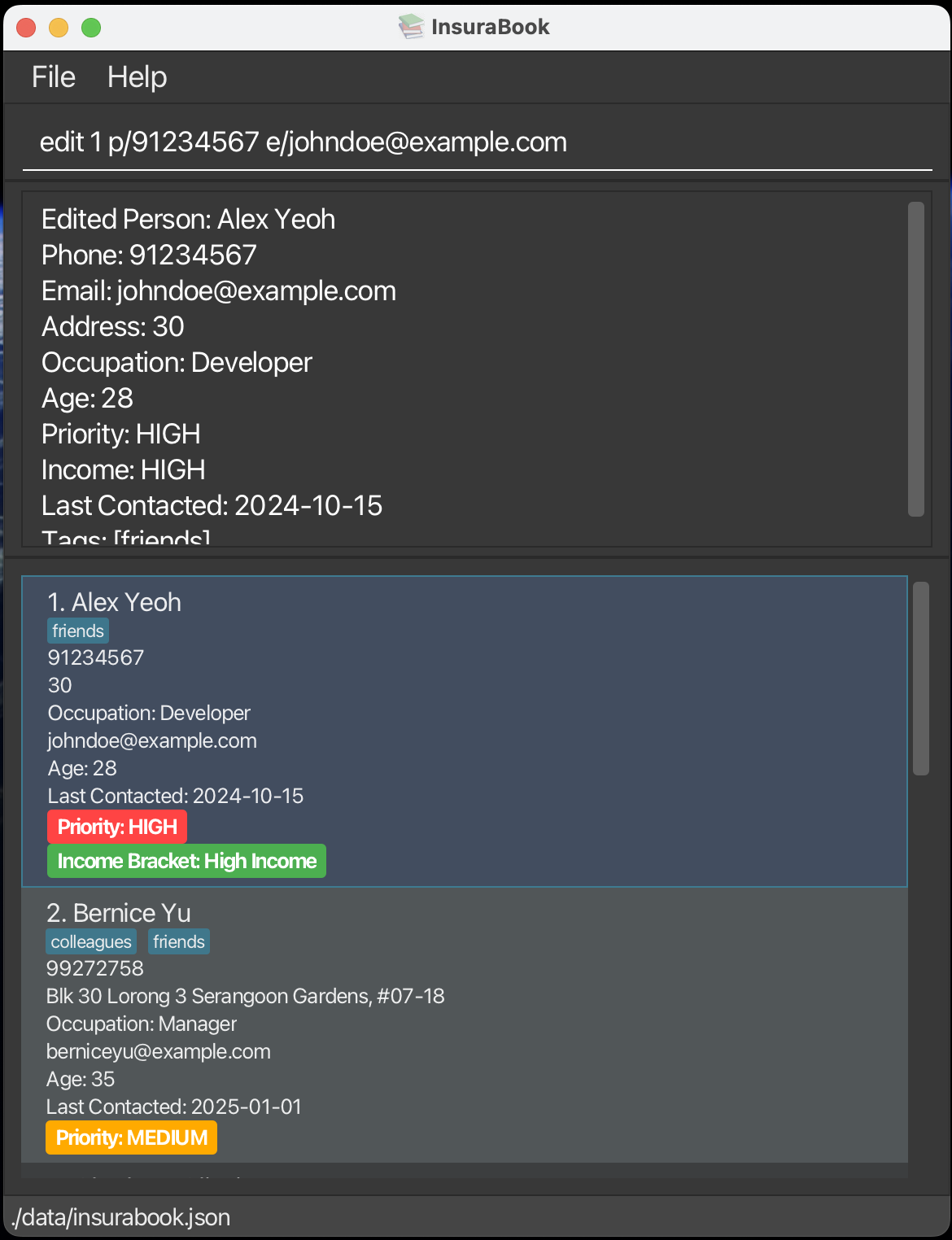
Editing details of the first client on InsuraBook
- For details on available
PERSON_PARAMS, click here. - Edits the client at the specified
INDEX. - At least one of the optional fields must be provided.
Examples:
edit 1 p/91234567 e/johndoe@example.com- Edits the phone number and email address of the first contact to be
91234567andjohndoe@example.comrespectively.
- Edits the phone number and email address of the first contact to be
edit 2 n/Betsy Crower t/ pr/HIGH- Edits the name of the second contact to be
Betsy Crower, clears all existing tags and changes the priority to HIGH.
- Edits the name of the second contact to be
Warning: When editing tags, the existing tags of the contact will be removed i.e adding of tags is not cumulative.
Tip: You can remove any optional field by using the prefix without a value (e.g., edit INDEX t/ removes all tags, edit INDEX e/ removes email, edit INDEX a/ removes address).
Deleting a client: delete
Deletes the specified contact from InsuraBook.
Format: delete INDEX
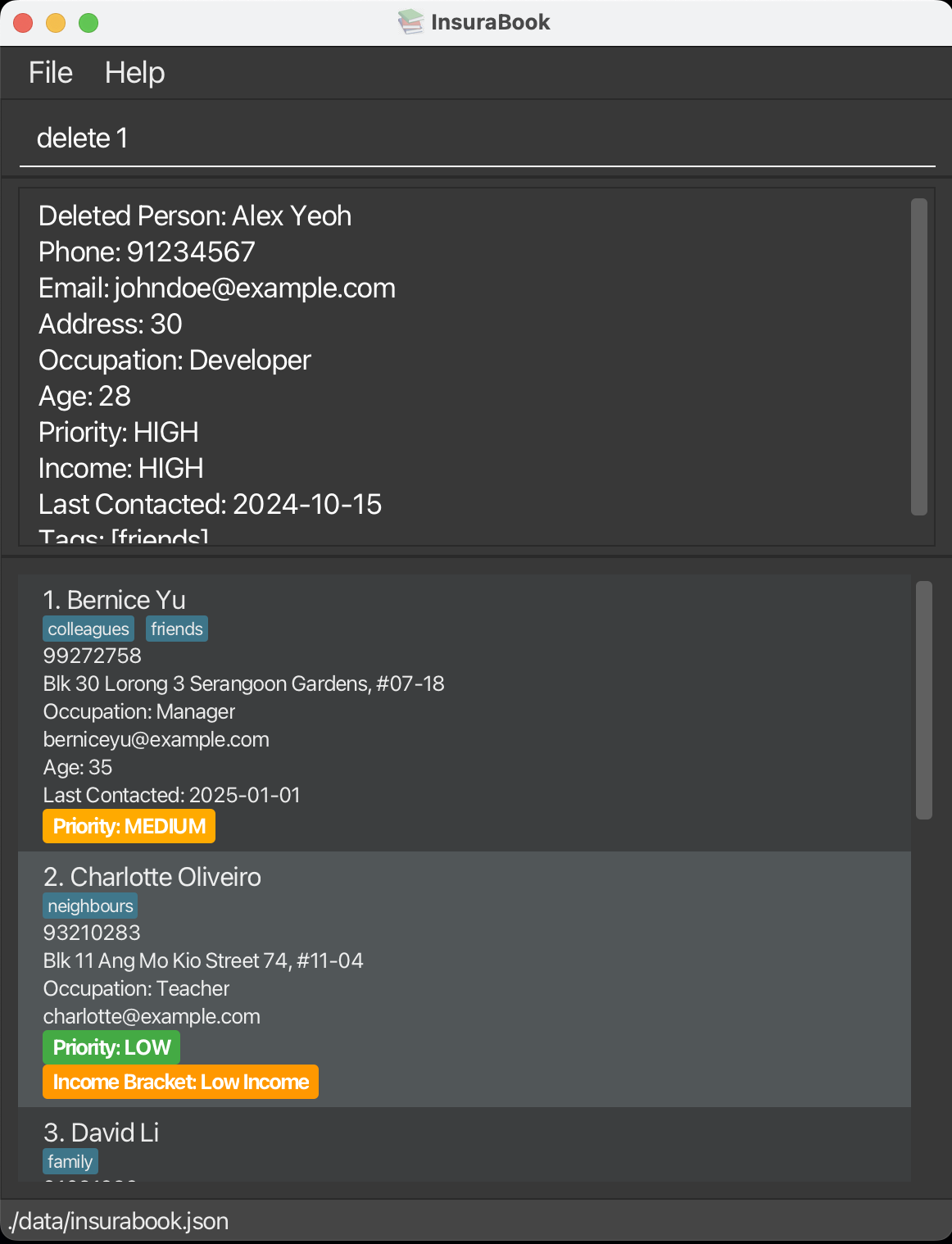
Deleting the first client from InsuraBook
- Deletes the contact at the specified
INDEX.
Examples:
listfollowed bydelete 2- Deletes the second contact in InsuraBook, after carrying out the
listcommand.
- Deletes the second contact in InsuraBook, after carrying out the
find Betsyfollowed bydelete 1- Deletes the first contact in the results of the
findcommand.
- Deletes the first contact in the results of the
Clearing all entries: clear
Clears all entries from InsuraBook.
Format: clear
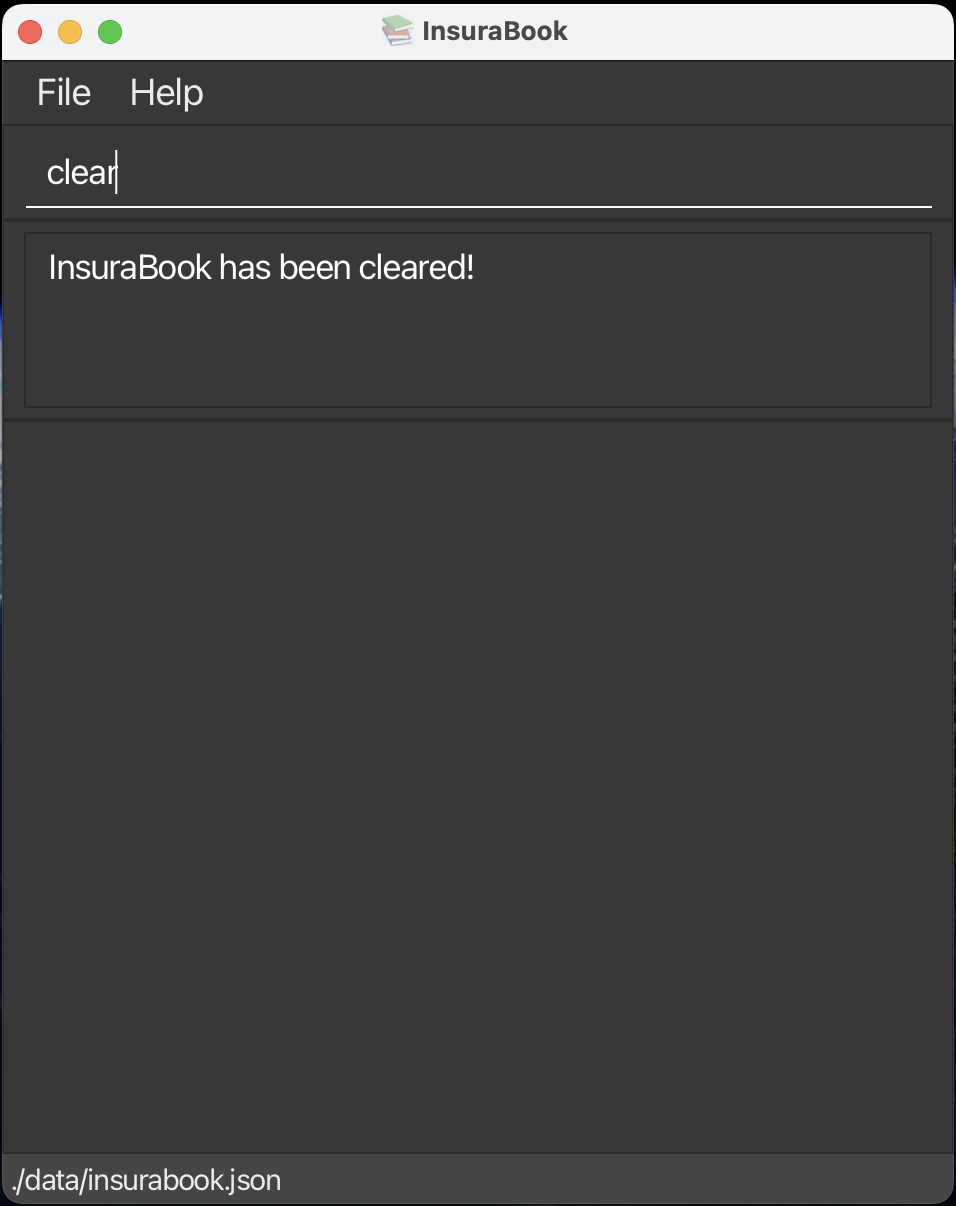
Clearing details of all clients from InsuraBook
Warning: The clear command permanently deletes all contacts and cannot be undone. Only use this command if you are sure you want to permanently remove all data. Confirm carefully before proceeding.
Organising and Searching
Listing all clients: list
Shows a list of all contacts sorted by index in the InsuraBook.
Format: list [pr/asc] [pr/desc] [i/asc] [i/desc]
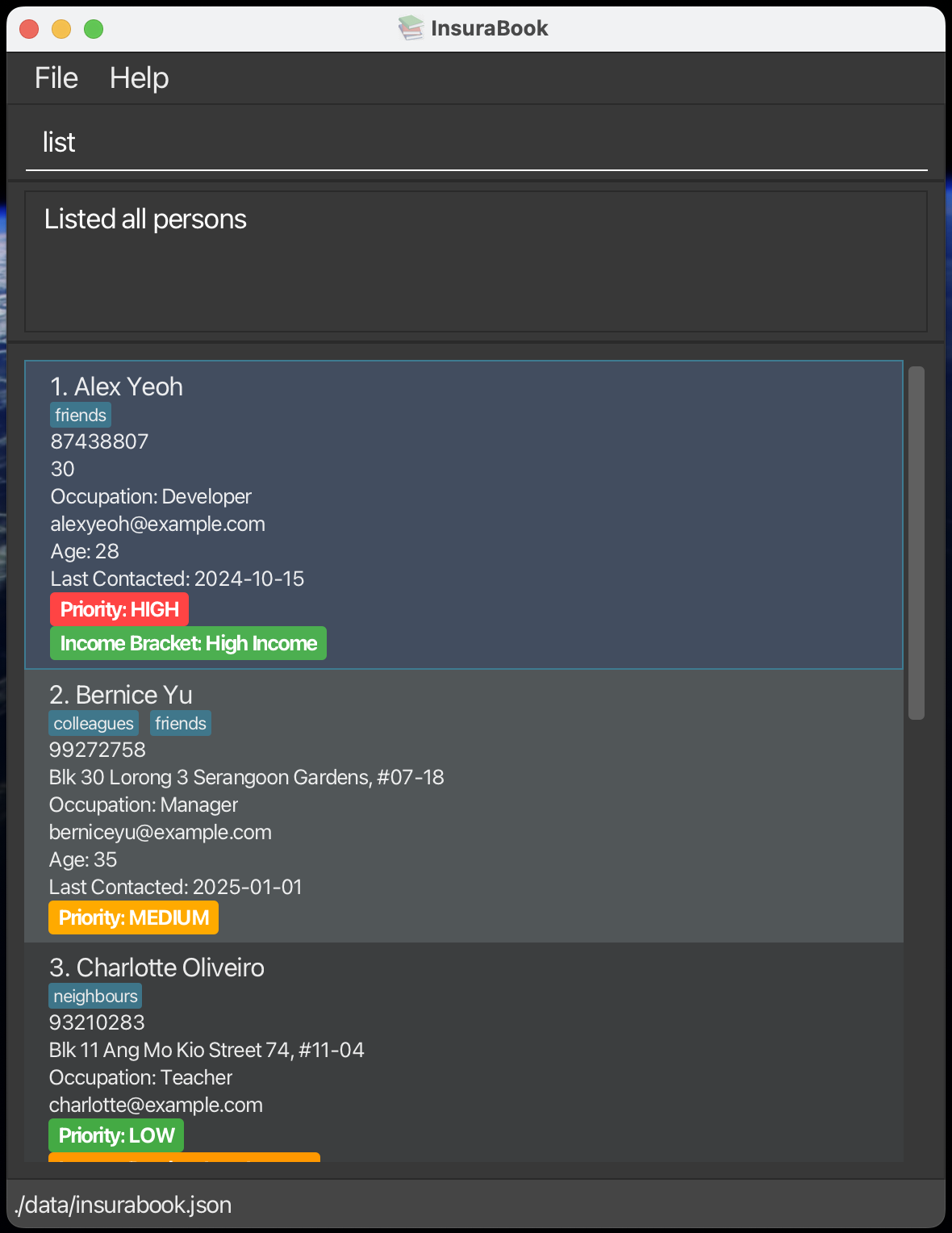
Listing all clients on InsuraBook
Examples:
list- Shows all clients sorted by index.
list pr/asc- Shows all clients sorted by priority in ascending order.
list pr/desc- Shows all clients sorted by priority in descending order.
list i/asc- Shows all clients sorted by income bracket in ascending order.
list i/desc- Shows all clients sorted by income bracket in descending order.
Note: Clients that do not have values for PRIORITY and INCOME_BRACKET will be listed at the bottom when using sorting commands (for example, list pr/asc or list i/desc).
Warning: You can only have up to one of the optional parameters.
Locating clients by fields: find
Finds clients whose fields contain any of the given keywords.
Format: find KEYWORD [MORE_KEYWORDS]
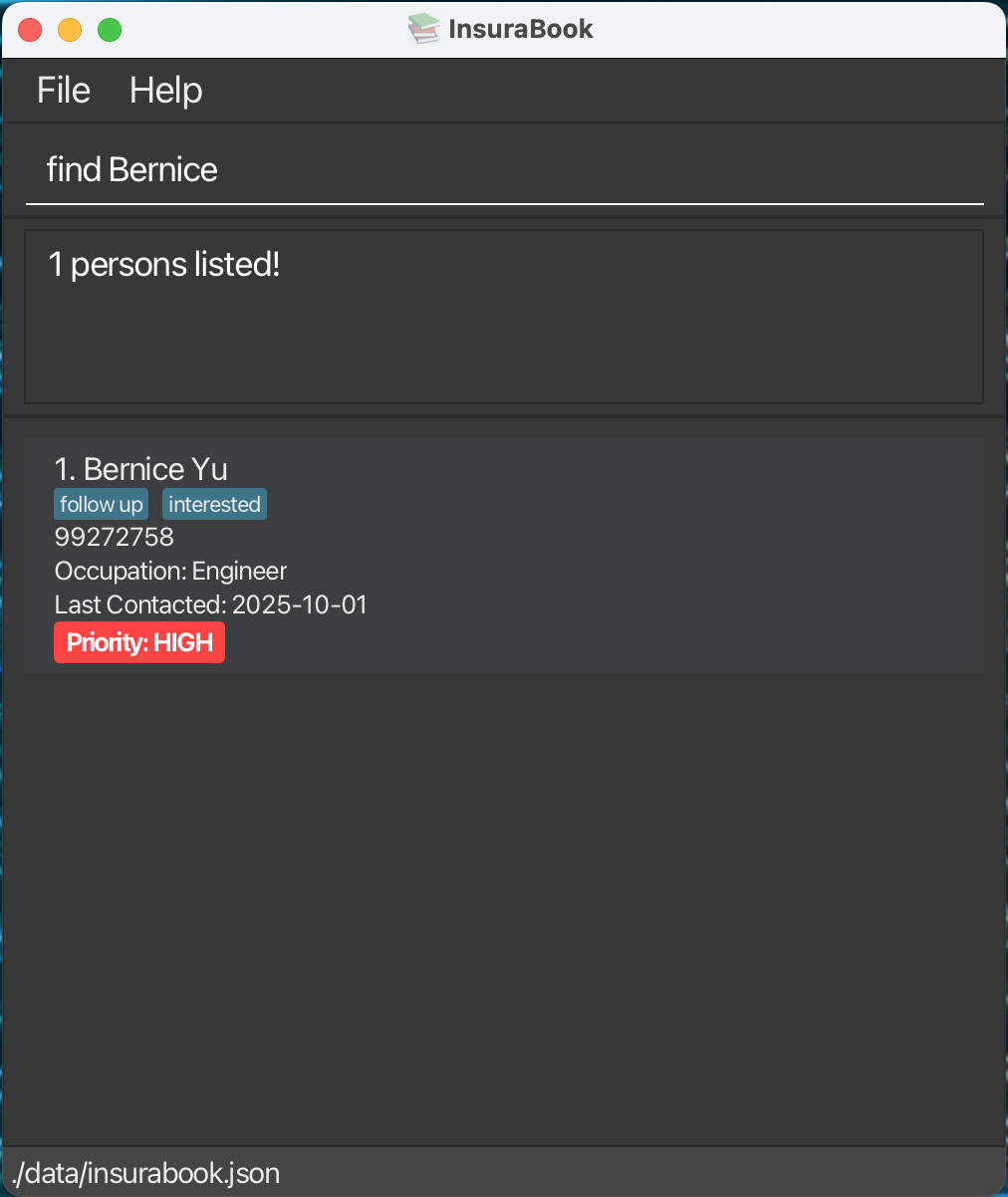
Searching for a client by name
- The search is case-insensitive. e.g
hanswill matchHans. - The order of the keywords does not matter. e.g.
Hans Bowill matchBo Hans. - Partial words will be matched e.g.
find Hanwill matchHans. - Clients matching at least one keyword will be returned (i.e.
ORsearch).- e.g.
Hans Bowill returnHans Gruber,Bo Yang.
- e.g.
- Values from fields
NAME,PHONE,EMAIL,ADDRESS,OCCUPATION,AGE,LAST_CONTACTED,TAGare searched.
Examples:
find John- Returns
johnandJohn Doe.
- Returns
find 87438807- Returns
Alex Yeohas it matches their phone number.
- Returns
find family- Returns
David Lias it matches their assigned tags.
- Returns
find Alex family- Returns
Alex Yeoh,David Li.
- Returns
find alex david- Returns
Alex Yeoh,David Li.
- Returns
find 2023-12-25- Returns clients with
LAST_CONTACTED=2023-12-25.
- Returns clients with
Client Categorisation
Editing a tag: tag
Changes the tags of an existing client in InsuraBook. This is a convenient shortcut for the edit command when you only want to change the tags.
Format: tag INDEX t/TAG_NAME [t/TAG_NAME]...
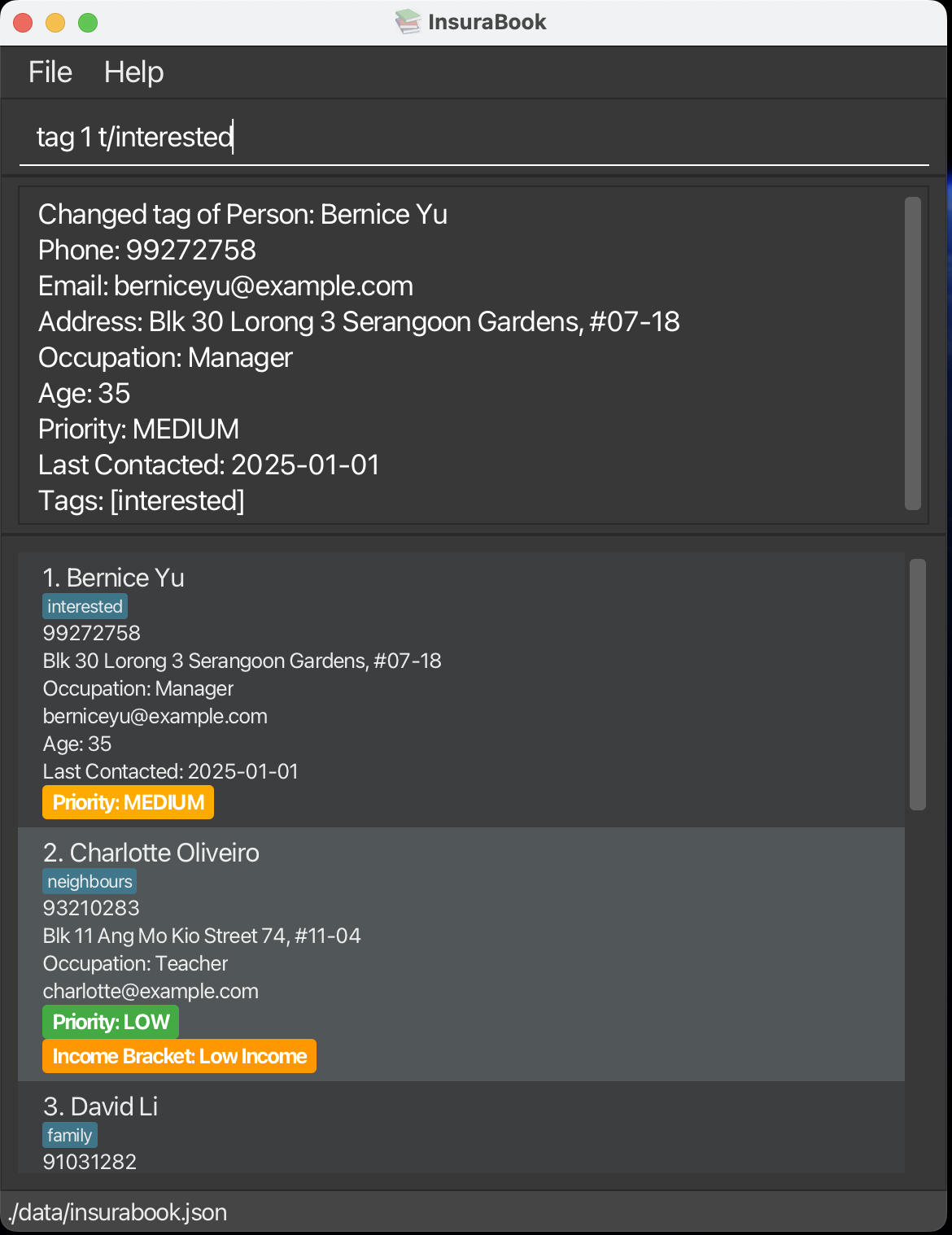
Adding a tag to the first client on InsuraBook
- Changes the tags of the contact at the specified
INDEX. tag_namemust be alphanumeric and spaces allowed.- Maximum 30 characters.
- Case-insensitive (eg, Interested = interested).
- Leading/trailing spaces are trimmed.
- This command is equivalent to
edit INDEX t/tag_name.
Examples:
tag 1 t/interested- Sets the tag of the first contact to
interested.
- Sets the tag of the first contact to
tag 2 t/follow up- Sets the tag of the second client to
follow up.
- Sets the tag of the second client to
tag 5 t/do not call- Sets the tag of the fifth client to
do not call.
- Sets the tag of the fifth client to
tag 7 t/follow up t/interested- Sets the tags of the seventh client to
follow upandinterested.
- Sets the tags of the seventh client to
Note: The tag command cannot be used to clear existing tags or remove all tags by supplying an empty t/. To remove all tags, use the edit command with an empty tag prefix, e.g. edit INDEX t/.
Tip: Use the tag command for quick tag changes, or the edit command when changing multiple fields at once.
Warning: Similar to the editcommand, when adding tags, the existing tags of the contact will be removed i.e adding of tags is not cumulative.
Marking a contact as Do Not Call: dnc
Marks a contact as Do Not Call (DNC) in InsuraBook.
Format: dnc INDEX
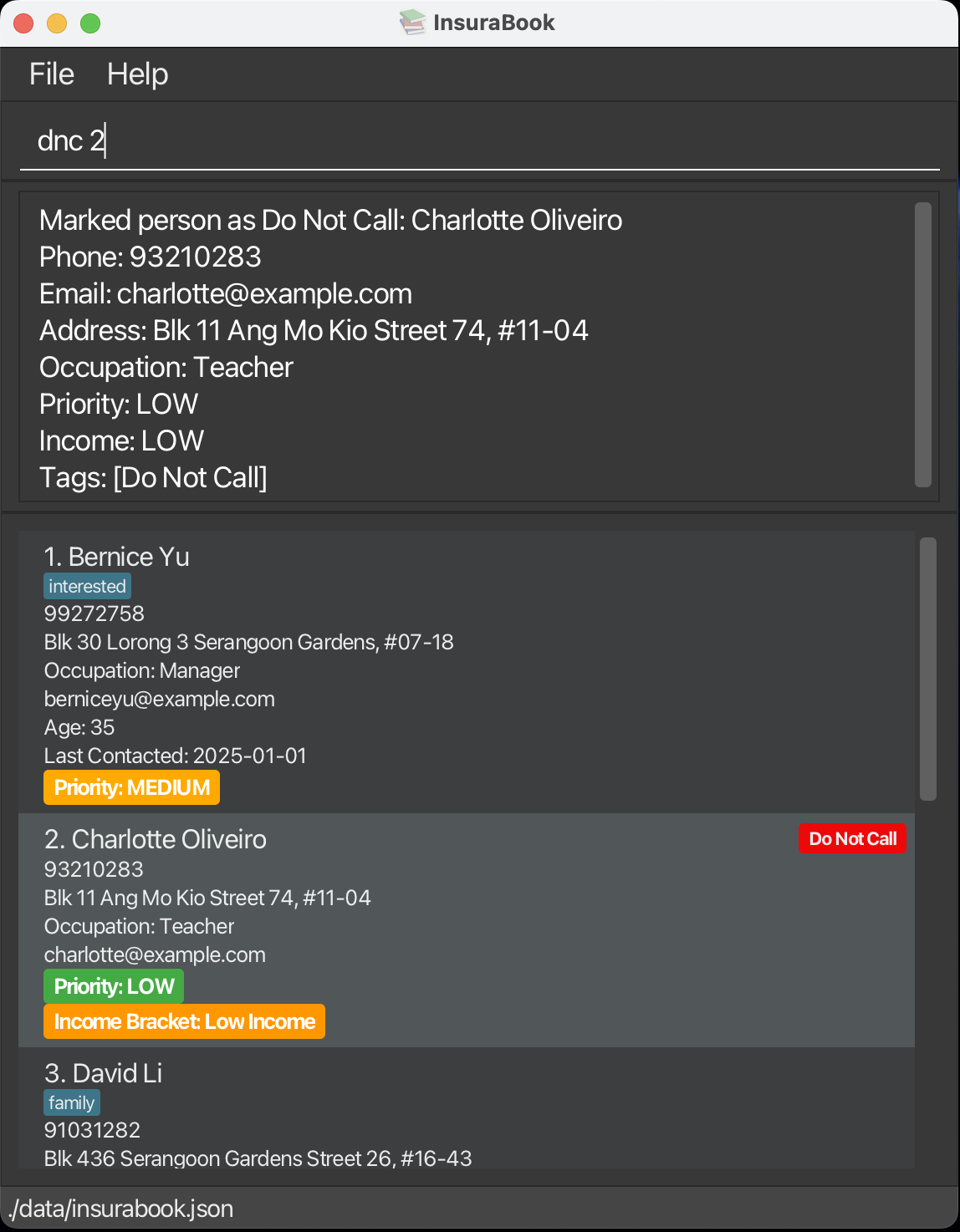
Marking the second client on InsuraBook as DNC
- Marks the contact at the specified
INDEXas Do Not Call. - A special "Do Not Call" tag (displayed in red) will be applied to the contact.
- The DNC status cannot be removed from a contact.
Examples:
dnc 1- Marks the first contact on the list as Do Not Call.
dnc 3- Marks the third contact on the list as Do Not Call.
Warning: The dnc command applies an irreversible Do Not Call status by setting a special DNC tag. Executing dnc INDEX will remove all other tags on the contact. Because DNC contacts cannot be edited, tags cannot be restored.
Tip: If a contact was wrongly assigned as DNC, delete the contact and re-add them to the system.
Editing the priority: priority
Changes the priority of an existing client in InsuraBook. This is a convenient shortcut for the edit command when you only want to change the priority.
Format: priority INDEX PRIORITY
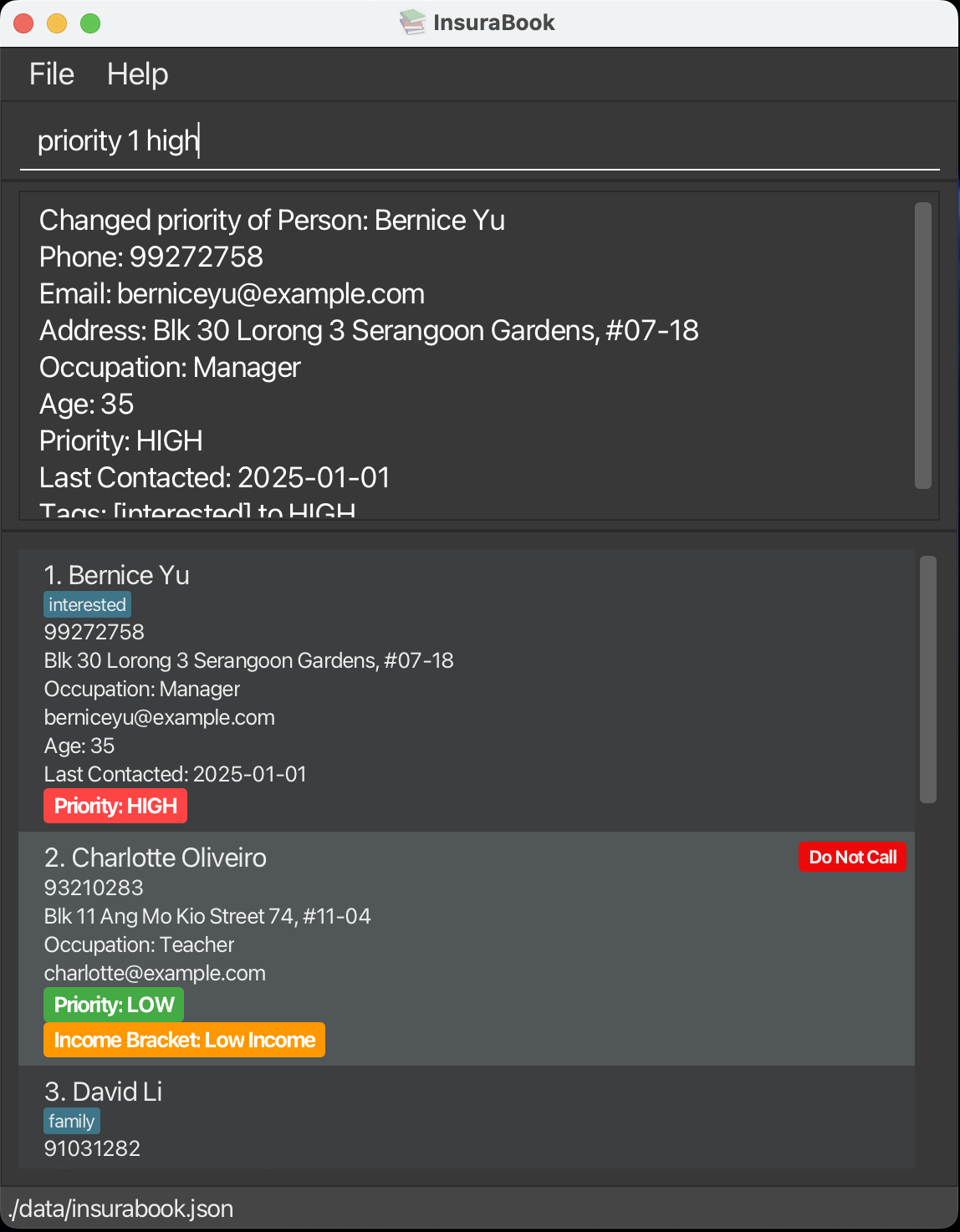
Setting the priority of the first client on InsuraBook as high
- Changes the priority of the client at the specified
INDEX. PRIORITYmust be one of:NONE,LOW,MEDIUM,HIGH(case-insensitive).
Examples:
priority 1 HIGH- Sets the priority of the first contact to
HIGH.
- Sets the priority of the first contact to
priority 3 NONE- Sets the priority of the third contact to
NONE.
- Sets the priority of the third contact to
priority 2 medium- Sets the priority of the second contact to
MEDIUM(case-insensitive).
- Sets the priority of the second contact to
Tip: Use the priority command for quick priority changes, or the edit command when changing multiple fields at once.
System Commands
Exiting the program: exit
Exits the program.
Format: exit
Saving the data
InsuraBook data is saved in the hard disk automatically after any command that changes the data. There is no need to save manually.
Editing the data file
InsuraBook data is saved automatically as a JSON file [JAR file location]/data/insurabook.json. Advanced users are welcome to update data directly by editing that data file.
Caution:
If your changes to the data file makes its format invalid, InsuraBook will discard all data and start with an empty data file at the next run. Hence, it is recommended to take a backup of the file before editing it.
Furthermore, certain edits can cause the InsuraBook to behave in unexpected ways (e.g., if a value entered is outside the acceptable range). Therefore, edit the data file only if you are confident that you can update it correctly.
Click here to go back to the content page.
Command summary
| Action | Format, Examples |
|---|---|
| Add | add n/NAME p/PHONE_NUMBER [PERSON_PARAMS] e.g., add n/James Ho p/22224444 e/jamesho@example.com a/123, Clementi Rd, 1234665 pr/HIGH t/friend t/colleague |
| Clear | clear |
| Delete | delete INDEXe.g., delete 3 |
| DNC | dnc INDEXe.g., dnc 1 |
| Edit | edit INDEX [n/NAME] [p/PHONE] [PERSON_PARAMS]e.g., edit 2 n/James Lee e/jameslee@example.com pr/MEDIUM |
| Find | find KEYWORD [MORE_KEYWORDS]e.g., find James Jake |
| List | list [pr/asc] [pr/desc] [i/asc] [i/desc] |
| Tag | tag INDEX t/TAG_NAME [t/TAG_NAME]... e.g., tag 1 t/interested t/follow up |
| Priority | priority INDEX PRIORITYe.g., priority 1 HIGH |
| Help | help |
Click here to go back to the content page.
FAQ
Q: How do I transfer my data to another Computer?
A: Install the app in the other computer and overwrite [JAR file location]/data/insurabook.json with the file that contains the data of your previous InsuraBook home folder.
Click here to go back to the content page.
Known issues
- When using multiple screens, if you move the application to a secondary screen, and later switch to using only the primary screen, the GUI will open off-screen. The remedy is to delete the
preferences.jsonfile created by the application before running the application again. - If you minimise the Help Window and then run the
helpcommand (or use theHelpmenu, or the keyboard shortcutF1) again, the original Help Window will remain minimised, and no new Help Window will appear. The remedy is to manually restore the minimised Help Window. - If you manually edit the data file (
data/insurabook.json) with invalid data (e.g., an occupation containing non-alphabetical characters, an age outside the valid range, or other constraint violations), the application will fail to start. The remedy is to ensure all data is validated before editing the file, or restore a backup of the file. Refer to the Parameters section for the constraints of each field.
Click here to go back to the content page.